


Rewriting a 91,000-line WinForms app in Avalonia

Most framework comparisons are written by someone who built a to-do list in both. This one comes out of a production accounting application with paying customers, rebuilt over nine months by one developer.
Argo Books version 1 was a Windows-only WinForms application: 91,089 lines of C# across 246 files. Version 2 is the same product on Avalonia, running on Windows, macOS, and Linux. Every number below was measured from the two codebases.
Reaching more operating systems was the reason I started, and it’s a good reason on its own. What I didn’t expect was that it would end up as one of the smaller benefits. The interesting part is which problems disappeared along the way.
Start with dark mode, because it explains everything
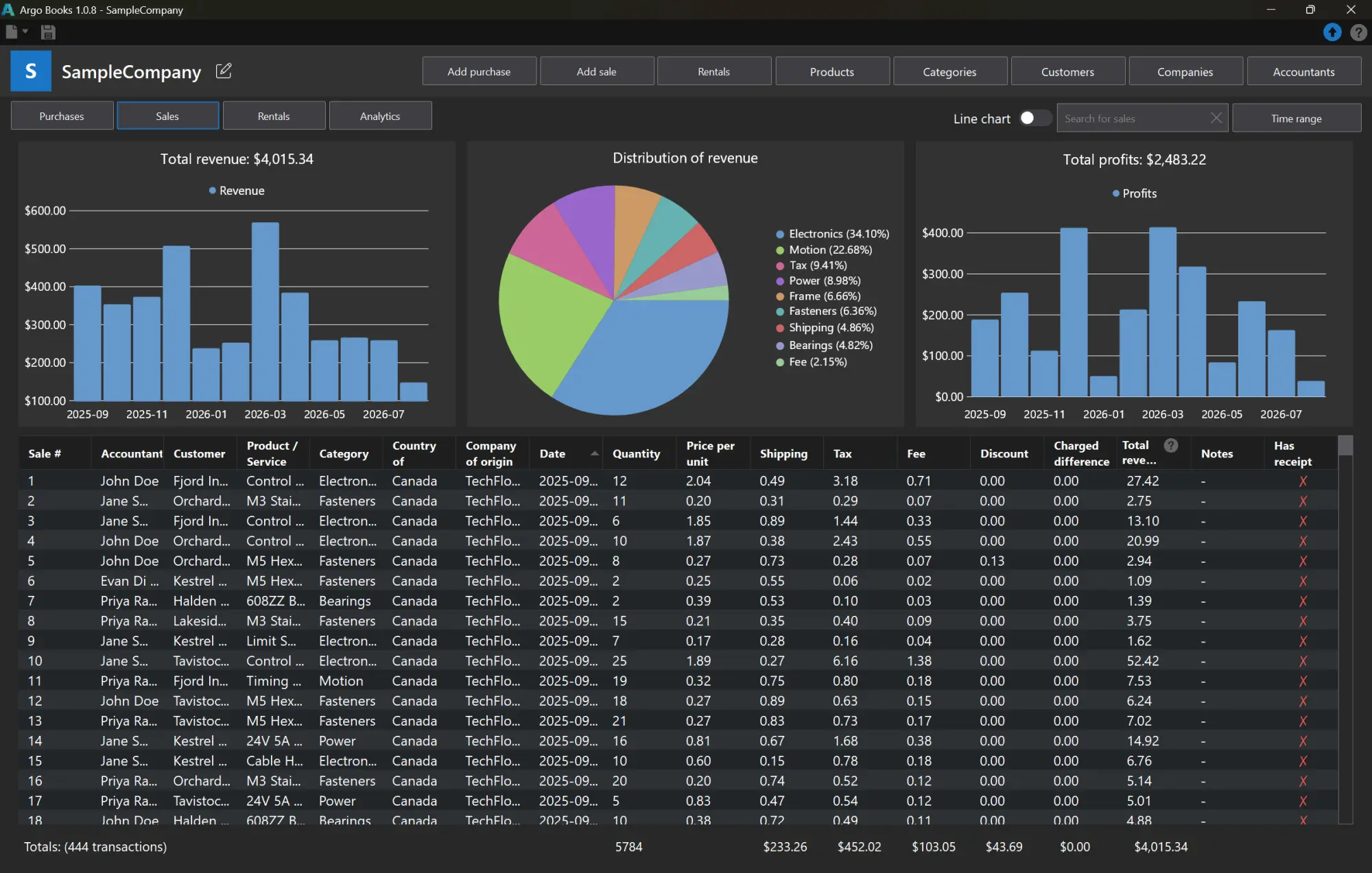
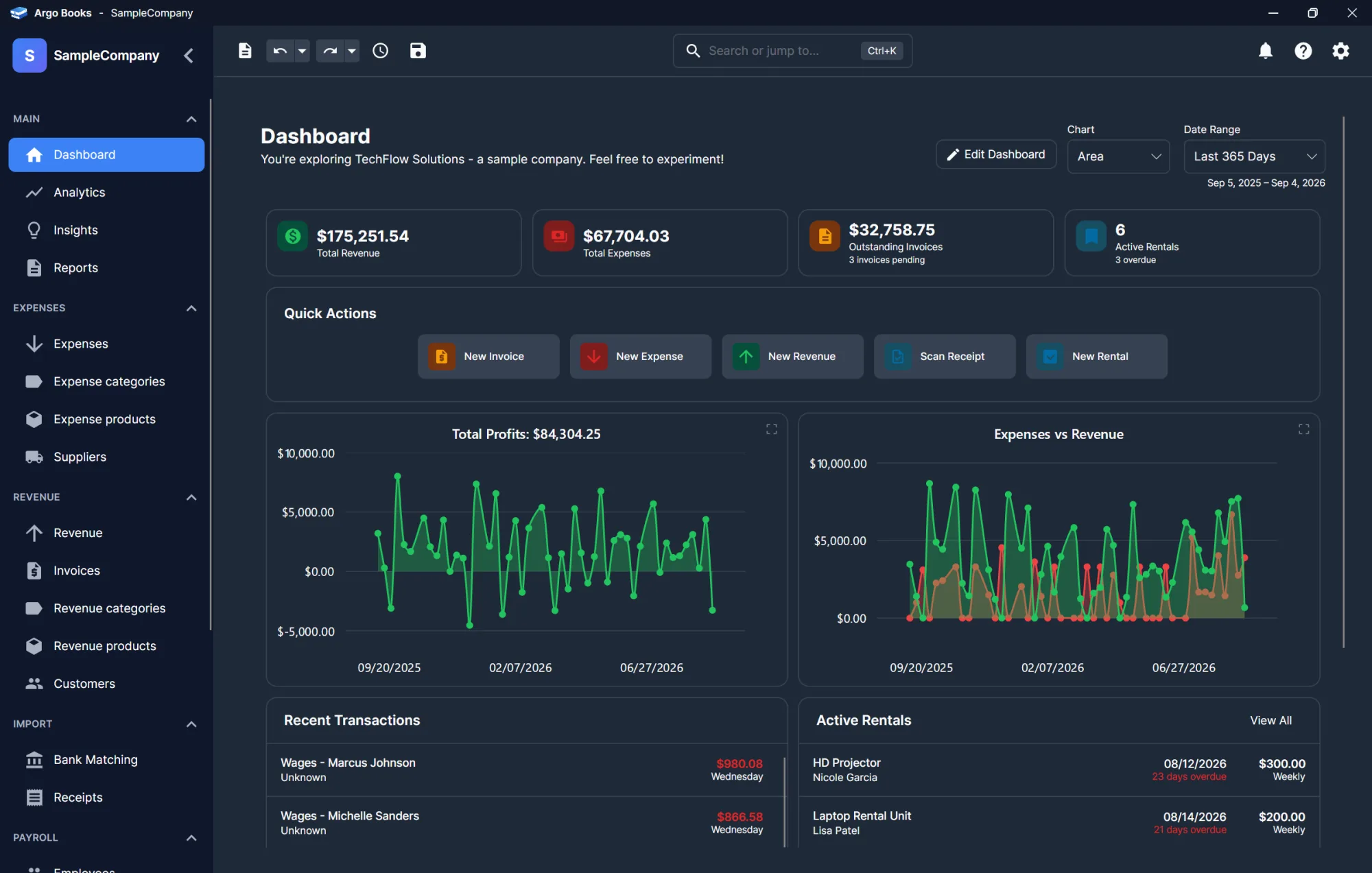
WinForms has no theming system. Not a limited one. None. Every control paints itself with whatever colors you assign to it, individually, at runtime. So a WinForms app that supports dark mode is an app where somebody assigned every color by hand.
In version 1 that came to 1,873 explicit color assignments scattered through the codebase, plus 845 lines of dedicated theming machinery to apply them. The machinery worked by walking the entire control tree and type-switching on everything it found:
public static void SetThemeForControls(List<Control> list)
{
    foreach (Control control in list)
    {
        if (control == null) { continue; }

        switch (control)
        {
            case Form form:
                form.BackColor = CustomColors.MainBackground;
                break;

            case Label label:
                label.ForeColor = CustomColors.Text;
                break;

            case RichTextBox richTextBox:
                richTextBox.BackColor = CustomColors.MainBackground;
                richTextBox.ForeColor = CustomColors.Text;
                break;

            case FlowLayoutPanel flowLayoutPanel:
                flowLayoutPanel.BackColor = CustomColors.MainBackground;
                CustomizeScrollBar(flowLayoutPanel);
                break;

            // ... one case per control type in the application,
            //     then recurse into control.Controls and do it again
        }
    }
}
Miss a control type and it stays light on a dark window. Add a screen and you extend the switch. That’s a tax on every piece of UI you ever write.
The user sees the cost too. Because the theme is applied by walking the tree and assigning colors one control at a time, the window repaints one control at a time. Switching to dark mode isn’t a flip, it’s a visible cascade: the panels change, then the grid, then the buttons catch up, over a noticeable fraction of a second.
Nothing there is broken, exactly. It just feels like software from 2005, and that is the recurring theme of WinForms rather than a single defect you could go and fix. Every individual piece works. The sum of them feels dated, because the framework has no way to express “change all of this at once”, only a way to change one thing and then the next.
It goes further. WinForms also gives you no notification when the user changes their system theme. So version 1 shipped a background thread that polled the Windows registry once a second, for the entire life of the process, to answer the question "is dark mode on yet":
private void WatchForChanges()
{
    object previousValue = null;
    bool firstRun = true;

    while (!_stopEvent.WaitOne(1000))
    {
        using RegistryKey key = RegistryKey
            .OpenBaseKey(_hive, RegistryView.Default)
            .OpenSubKey(_keyPath, false);

        // read the value, compare it to previousValue, raise an event if it moved
    }
}
A dedicated thread, waking every second, watching a registry key. Here is the entire Avalonia equivalent:
app.ActualThemeVariantChanged += OnSystemThemeChanged;And the colors are no longer C# at all. They live in two files, a light theme and a dark theme of about 150 lines each, and the framework swaps the whole set when the theme changes:
<Color x:Key="BackgroundColor">#FFFFFF</Color>
<Color x:Key="SurfaceColor">#FFFFFF</Color>
<Color x:Key="SurfaceHoverColor">#F8F9FA</Color>
<Color x:Key="BorderColor">#E1E5EB</Color>
WinForms
- 1,873 hardcoded color assignments
- 845 lines of theming machinery across 5 files
- 1 thread polling the registry every second
Avalonia
- 0 hardcoded color assignments in C#
- 415 lines of declarative theme definitions
- 1 event subscription
WinForms makes you build the system yourself, in imperative code, forever. Avalonia already has the system, and it’s declarative, so the framework carries what you would otherwise carry by hand.
The designer works. It just doesn’t scale.
I want to be fair to the WinForms designer, because the usual criticism of it is wrong. Dragging controls onto a canvas and setting properties in a grid is a genuinely good way to build a small application, and it’s hard to beat for teaching, because a student sees a working window in about a minute. I built most of version 1 that way and it was fine for a long time.
The problem is what happens as the application grows.
Past a certain size, more and more of the interface has to be created in code: anything repeated, anything conditional, anything built from data rather than known at design time. So the app drifts into a split personality. Some controls exist because they were dropped on a canvas and live in a generated file. Others exist because a method built them at runtime. Neither half tells you about the other.
Once a window is half designer and half code, the designer stops being a reliable picture of what the user will see, and the generated file stops being safe to reason about on its own. Finding where a control is actually configured means checking both places. That’s the point where the tool starts costing more than it saves, and there’s no clean moment to abandon it, because the half you already built isn’t going to convert itself.
The volume is part of it too. Version 1 carried 56 .Designer.cs files totalling 20,305 lines against a 91,089-line codebase. Twenty-two percent of the project was a second representation of the interface that had to stay in sync with the first. The code itself is simple enough, and I edited it by hand several times. It’s just a lot of code, and it exists because WinForms has no way to describe a window. It can only record the steps that build one, so every property of every control becomes another statement to store, scroll past and keep in sync. XAML is a description, which is why the same window takes a fraction of the space.
The clearest example were resource files. Argo Books shows an image of a country flag beside currency and locale settings, so it ships 195 small PNGs. WinForms surfaces embedded images through a strongly typed resource class, which meant this:
// --- <auto-generated> ----------------------------------------------------------------------------

[global::System.CodeDom.Compiler.GeneratedCodeAttribute(
    "System.Resources.Tools.StronglyTypedResourceBuilder", "18.0.0.0")]
internal class Flags {

    internal static System.Drawing.Bitmap Canada {
        get {
            object obj = ResourceManager.GetObject("Canada", resourceCulture);
            return ((System.Drawing.Bitmap)(obj));
        }
    }

    // ... 194 more, one per flag
}
Two thousand lines of generated C# whose entire job was to let you write Flags.Canada instead of naming a file.
And the names were effectively frozen. Here is what a single flag looks like inside Flags.resx, the resource file the generated class is built from:
<data name="Canada" type="System.Resources.ResXFileRef, System.Windows.Forms">
  <value>..\Resources\Canada.png;System.Drawing.Bitmap, System.Drawing, Version=4.0.0.0, Culture=neutral, PublicKeyToken=b03f5f7f11d50a3a</value>
</data>
That is one image. The name is the key you look it up by. The type says the entry is a reference to a file rather than the image data itself. Then the value packs three separate things into one string, separated by a semicolon and commas: the relative path to the PNG, the .NET type to load it as, and the fully qualified assembly that type comes from, right down to the public key token.
So the filename is buried inside a string that also carries type and assembly identity. And it appears in five places in total: the file on disk, that name key, the path inside that value, the generated property, and a string literal inside the generated property’s body.
Rename the PNG in Explorer and you have broken the path in the middle of that value, which also carries a fully qualified assembly reference and a public key token, so it isn’t a find and replace. Miss any of the five and the failure is not a compile error. The last one is a string passed to ResourceManager.GetObject, so the project builds happily and the image comes back null at runtime. Some of those five aren’t visible together in the editor either, since the generated file is collapsed under the .resx and the image itself sits in a different folder.
The practical effect is that you stop renaming things. A file called Flag_2.png keeps that name forever, because fixing it is a five-location edit with a runtime-only failure mode. In Avalonia the same 195 flags sit in Assets/CountryFlags/, you reference them by path, and renaming one is renaming a file. The generated file doesn’t exist because the concept doesn’t exist.
Across the rewrite, 56 designer files and 57 .resx files became zero. In Avalonia the markup is the layout, and it’s the only copy. There’s no second representation to drift out of sync, and no split between what the designer knows and what the code does, because there’s only one way to define a control.
The honest trade
You give up the drag-and-drop canvas. Avalonia has previewers and hot reload, but you’re writing layout markup by hand, and for a small project that’s genuinely slower to start with.
It’s a smaller loss than it sounds, though, because a large application never gets to keep the canvas anyway. Past a certain size you’re generating controls in code regardless, so the choice isn’t between a designer and hand-written markup. It’s between one consistent way of defining a screen, and half a screen on a canvas with the other half in a method somewhere, which is the arrangement that actually costs you time. Markup you can also read in a diff, review, and search.
A control library can’t fix the framework underneath it
WinForms controls look like Windows XP because they largely are. The standard answer is to buy a third-party control suite, and that’s what version 1 did: it used Guna UI, 2,142 references deep across the codebase.
Guna did what it promises. Buttons, text boxes and grids looked modern instead of dated, and the controls themselves were fine. The release cadence tells you how much attention it gets now: version 2.0.4.6 in November 2023, 2.0.4.7 almost fifteen months later in February 2025, then 2.0.4.8 almost sixteen months after that in June 2026, carrying two bug fixes. It isn’t abandoned. It isn’t moving either, and the issues I ran into weren’t among the two that got fixed.
None of what follows is a complaint about the library. It’s a point about what a control suite can and can’t do. A library like this replaces the controls. It doesn’t replace the framework they sit on, so everything the framework lacks, it still lacks. There’s no theming system underneath, so dark mode is still 1,873 hand-assigned colors. There’s no modern layout system underneath, so responsive resizing is still anchors, docking and arithmetic. Rendering is still the WinForms pipeline. Every gap gets closed with a workaround at the call site rather than fixed once at the bottom, and by the end my own code was full of those workarounds.
Then there’s the coupling. 2,142 references isn’t a dependency you swap out on a weekend. Every screen in the application was written against one vendor’s controls, and moving off them was going to be a rewrite whenever it happened.
The bill recurs, too. The control suite is a subscription: $49 USD a year for an individual licence, or $99 USD a year for a small team. It comes with a 14-day evaluation, after which you can’t keep editing your projects without one. Charts are a second product on top, $33 USD a year on their own or $79 USD a year bundled with the suite. I paid for both. Whatever you make of those numbers, it’s a cost that repeats for as long as the app exists, to make controls look modern on a framework that isn’t.
And the charts made the point sharpest, because I didn’t even get to keep them. They were slow. Not marginally: slow enough that I replaced them inside version 1 rather than wait for the rewrite. In July 2025, across thirteen files, I converted every chart in the application to LiveCharts2, which is free and renders through Skia. The paid components lost to the free ones on performance. LiveCharts2 then came across to Avalonia and still renders every chart in version 2, which is a longer life than the paid library managed inside version 1 alone.
Avalonia is free and open source, and its controls are the framework’s own, so styling, theming and layout are the same system rather than a suite bolted onto one. Dropping 2,142 references to a paid dependency wasn’t the goal of the migration. It was a side effect of no longer needing one.
Worth saying plainly
WinForms is still supported and still ships with .NET. The argument here isn’t that it’s broken or abandoned. It’s that a framework designed in 2002 has no theming system, no modern layout model and no path off Windows, and no control library sitting on top of it can add those things. The next section is the case where that limit isn’t a matter of effort at all.
The one that can’t be fixed from the outside
Everything above is a reason to want to leave. This is the one that eventually forces it, and it isn’t theming or the designer. It’s that a WinForms app doesn’t render the same way on two different screens.
WinForms controls are Win32 window handles drawn with GDI+, sized in pixels. That decision predates high-resolution laptops, 4K monitors, fractional display scaling and the ordinary situation of dragging a window from a 150% laptop screen onto a 100% external monitor. Resolution independence isn’t a feature you can add to that model afterwards. It’s a property the model doesn’t have.
Microsoft has tried, repeatedly, and the attempts are visible in the framework’s own code. There are now five DPI awareness modes to choose between:
public enum HighDpiMode
{
    DpiUnaware,
    SystemAware,
    PerMonitor,
    PerMonitorV2,
    DpiUnawareGdiScaled
}
You pick one with Application.SetHighDpiMode, then pick again per form with AutoScaleMode, which has its own four options: None, Font, Dpi and Inherit. Every one of those combinations improves some cases and leaves others wrong. A framework that has solved a problem doesn’t offer you five modes and ask which flavour of wrong you would prefer.
You can measure how well that has gone from the WinForms repository itself, because the team maintains a dedicated triage label for it, area-HDPI-SA, meaning high DPI scaling and awareness. At the time of writing:
- 72 issues have been filed under that label, and 26 are still open.
- 36 open issues have "DPI" in the title, out of 780 open issues in the repository.
- The oldest open one was filed in November 2019 and is still open.
- As recently as June 2026 there was a fresh API proposal for making DPI awareness work automatically, which means the problem is still being redesigned rather than closed.
A framework doesn’t accumulate almost seven years of open issues in one category because nobody cared. It accumulates them because the fix is architectural, and the architecture shipped in 2002.
In practice this is what it looks like from the developer’s side: you tune a form until it looks right, and then it renders wrong on a different device or monitor. Text is clipped at 125%. A panel that fits at 100% has a scrollbar at 150%. Controls land a few pixels out on one machine and sit perfectly on another. It’s the programmer’s oldest excuse, "works on my machine", except here it was literally true.
I lost several weeks to this, and I want to show you what I ended up with, because the workaround says more about the problem than any description of it could. Version 1 already asked the framework for DPI awareness at startup, Application.SetHighDpiMode(HighDpiMode.SystemAware), and it wasn’t enough. So I wrote a helper to correct the difference myself:
// I designed this app with my Windows display scale set to 150%
private static readonly float DESIGN_DPI_SCALE = 1.5f;

private static float CalculateDpiScale()
{
    using Graphics graphics = Graphics.FromHwnd(IntPtr.Zero);
    float currentDpiScale = graphics.DpiX / 96f;
    return currentDpiScale / DESIGN_DPI_SCALE;
}
Read that comment again. The application’s layout baseline was my laptop, hardcoded as a constant, and every other display in the world was expressed as a ratio against it. That’s not a design decision anybody makes on purpose. It’s what’s left after the supported approaches don’t work and you still have to ship.
It spread, too. By the end there were 88 calls to that helper across 24 files, hand-scaling combo box item heights, button images, search boxes and grid rows. Every new control was a decision about whether it needed the correction. And it still wasn’t right: I would open the app on a different computer and the layout would be wrong again, because a single ratio can’t describe every combination of scale factor, resolution and monitor arrangement.
The part that finally settled it was the WinForms designer in Visual Studio, and this is the one I would put in front of anyone weighing up whether to stay.
A designer file records the display it was authored on. Every form in version 1 carries a line like this, and 53 of the 56 designer files have one:
AutoScaleDimensions = new SizeF(10F, 25F);Those are font metrics from a 150% display. On a standard 96 DPI screen the same line reads roughly SizeF(7F, 15F), and three of my forms recorded SizeF(144F, 144F) instead, which is 96 DPI multiplied by 1.5: my monitor, written into the repository as a number. Every control’s position and size in those files is an absolute pixel literal measured against that baseline. There are 731 hardcoded positions and 890 hardcoded sizes across the designer files.
Now open one of those forms in the designer on a machine with different display scaling. The designer doesn’t just look different. It recalculates the position and size of every control against the new baseline and rewrites the file. You changed nothing, or you nudged one button by a single pixel, and the diff is hundreds of lines of recomputed coordinates.
Commit that and you have pushed your display settings into everyone else’s build, and it doesn’t wash out again. Every position and size in those files is an integer, so each recalculation rounds, and the values it rounded away are gone the moment they’re overwritten. AutoScaleDimensions is overwritten too, so the file no longer even records the baseline it was authored against.
The next person opens the form on their machine and it gets recomputed again, this time from the already damaged numbers. There is no pass that puts it back. Once a bad recalculation is committed the layout is permanently wrong, and the only way out is reverting the commit. Two developers on different monitors can’t both edit forms. They can only take turns damaging each other’s work, and the damage accumulates.
So the tool you build the interface with carries the same defect as the interface, and the file it generates is machine-dependent rather than a description of what you meant. That’s the bit no amount of care in the application code can route around.
You can’t test your way out of it either, because the combinations of display scale, resolution and monitor arrangement are effectively unbounded, and you own the arithmetic for every one of them.
Avalonia doesn’t wrap native controls. It draws every control itself through Skia, so display scaling is a transform applied to the scene rather than pixel arithmetic repeated per control. A layout described as "this row is as tall as its content, this column takes the remaining space" stays correct at any scale factor, because nothing in it was ever expressed in physical pixels. That’s the difference between owning your rendering and borrowing someone else’s from 2002.
This is the part I’d put in front of anyone still deciding. Theming is a lot of work you can grind through. The designer is a maintenance problem you can live with. Rendering differently on every customer’s display isn’t something you can fix, at any budget, from inside a WinForms app.
Everything is an event, so everything is wiring
WinForms has one way to make anything happen: subscribe to an event and write a handler. That is fine for a button. It stops being fine when the behaviour you want belongs to the whole application rather than to one control.
Version 1 had 1,031 event subscriptions and 266 handler methods. That is one subscription for every 88 lines of code in the app.
Here is the one that annoyed me most. Clicking somewhere else should close whatever popup panel is open, which is a single rule about the application. In WinForms there is nowhere to put it, so each window got its own copy:
private void ClosePanels()
{
    TextBoxManager.HideRightClickPanel();
    RightClickDataGridViewRowMenu.Hide();
}

// ...and, in the form's constructor, a filter that has to be told
// every control a click is allowed to land on without closing:
PanelCloseFilter panelCloseFilter = new(this, ClosePanels,
    TextBoxManager.RightClickTextBox_Panel,
    RightClickDataGridViewRowMenu.Panel);
That method is defined in 24 separate files, each with its own filter, each wired by hand. The filter itself intercepts raw Win32 mouse messages for the whole application, WM_LBUTTONDOWN and WM_RBUTTONDOWN, and closes the panels unless the click landed inside one of the controls you listed when you set it up.
Which means every window has to enumerate, by hand, every control a click is allowed to land on without dismissing the panel. Miss one and clicking that control closes a panel it should have left alone. Miss the filter entirely and the panel never closes at all. Neither is a crash, neither shows up in a test, and both are the kind of thing you find out about because somebody mentions it in passing.
Version 2 does the same job in one place, for the entire application:
private void CloseAllPanels()
{
    NotificationPanelViewModel.CloseCommand.Execute(null);
    FileMenuPanelViewModel.CloseCommand.Execute(null);
    HelpPanelViewModel.CloseCommand.Execute(null);
    QuickActionsViewModel.CloseCommand.Execute(null);
    CompanySwitcherPanelViewModel.CloseCommand.Execute(null);
    ClosePageContextMenus();
}
One definition, in the shell that owns the panels, wired to one event. Every page in the application inherits the behaviour by existing inside that shell. The 84 context menus in the interface are declared in markup and dismiss themselves, because that is what the control already does.
Across the whole codebase the wiring thinned out by roughly the same factor. Version 2 has 632 subscriptions across two and a half times as much code, so one for every 399 lines against version 1's one per 88. Some of that is MVVM, where a binding replaces a handler outright. Most of it is that behaviour now lives in one place instead of being restated in every window that needs it.
The change I didn’t see coming
Nobody changes UI framework to improve their test coverage, and I didn’t either. This one I didn’t anticipate at all, and it’s the only change here a user will never see.
In version 1, business logic lived inside window classes. MainMenu_Form.cs was 3,537 lines. ModifyRow_Form.cs was 2,712. Fifteen separate form files contained decimal arithmetic, which in an accounting application means money maths sat inside UI classes that can’t be instantiated without a window and a message pump.
The result was predictable. The version 1 test suite was 2,141 lines, because most of what mattered wasn’t reachable from a test runner.
Avalonia doesn’t force MVVM, but it makes it the path of least resistance, and taking that path let me put every calculation in a project with no UI dependency at all. The core library explicitly refuses both legacy UI stacks and references no Avalonia package whatsoever:
<PropertyGroup Condition="...GetTargetPlatformIdentifier(...) == 'windows'">
    <UseWindowsForms>false</UseWindowsForms>
    <UseWPF>false</UseWPF>
</PropertyGroup>
Tax tables, payroll, currency conversion, forecasting, the archive format, encryption: all of it is now a plain class library a test can call directly. The suite went from 2,141 lines to 49,943, with 129 view models sitting between that logic and the screen.
In accounting software that matters more than the ratio makes it sound: the money maths is now covered by tests that run in under a minute with no window open. It wasn’t why I started, and it isn’t the biggest thing I gained, but it’s the one that stops a bad afternoon from turning into a bad release.
Four files of platform-specific code
The headline reason to leave WinForms is simple: it only runs on Windows. Not "with effort" or "with a compatibility layer". It’s a wrapper over the Windows control library, so a WinForms app can’t run on macOS or Linux at all.
What surprised me was how little platform-specific code Avalonia actually asked for. The entire desktop entry point, the thing that boots the app on every desktop platform, is four files:
ArgoBooks.Desktop/
├── ArgoBooks.Desktop.csproj
├── app.manifest
├── Program.cs
└── Services/NetSparkleUpdateService.cs
Two of those are a project file and a manifest. Program.cs, the actual entry point, is 31 lines. The only substantial file is the auto-updater at 561 lines, and that isn’t platform bootstrapping at all.
Everything else, all 170,971 lines of the UI project and 69,506 lines of core logic, is shared verbatim across every platform it targets.
Where platforms genuinely differ, they differ behind one interface. IPlatformService has 23 members and three implementations: Windows, macOS and Linux. That’s the entire surface where the operating system leaks into the application.
Smaller than it sounds
Avalonia draws the same interface everywhere, but it doesn’t make every operating system behave the same underneath. Argo Books remembers your file password securely and can unlock with a fingerprint or face instead of typing it, and every operating system does both of those its own way. Avalonia has no opinion on either, so that part you write once per platform. I had braced for this and it turned out to be less work than I expected. The differences are real but narrow, and they stay behind one interface instead of spreading through the application.
Translating a layout that can’t grow
Both versions ship in 54 languages, and both download the same kind of per-version JSON file from the server. What changed is everything that happens after the file arrives.
Version 1 translated by walking every control on a form at runtime, looking each one up by a key built from its name, and replacing its text. That part worked. The trouble was that a WinForms layout is fixed pixels, and translated text is rarely the length of the English it replaces. So LanguageManager.cs grew to 962 lines that also repaired the layout after every translation: caching each label’s original bounds and its form’s original size so the label could be re-centred by hand, and binary-searching each button’s font size downward until the translated text fitted a button that couldn’t get wider. Controls that needed a different alignment, or shouldn’t be translated at all, were flagged by writing a marker into their AccessibleDescription, a property meant for screen readers, in 90 places.
Version 2 has none of that repair work. Text is bound in markup, 2,556 times across the views, and Avalonia measures content before it arranges it, so a longer translation makes its button wider instead of its font smaller. Adding a language is a data change, not a layout risk.
That isn’t a translation feature. It’s the same property that removed the scaling bugs: a layout that measures what it holds instead of trusting pixel positions someone chose in English at 150%.
What came over without a fight
Everything above is about what had to be rebuilt. This is the part that didn’t have to be rethought. A large chunk of this application never cared which framework was drawing it, and that chunk survived as design even though almost none of it survived as text.
Version 2 has a project called ArgoBooks.Core. It is 297 files and 70,918 lines, about 28% of the C# in the application, and it holds zero references to Avalonia or to any other UI framework. The data model, validation, services, file handling and platform abstractions all live in it, and none of it would notice if you compiled it against WinForms instead, or into a console application with no interface at all. 44 non-UI types across the two versions still carry the same names they had in version 1.
The clearest case is the report generator. In version 1 it was 29 files and 17,730 lines: a drag-and-drop layout designer with its own undo and redo stack. It is the most intricate code in the old application, and almost none of what makes it intricate is a framework question. Page geometry, element positioning, the undo stack, template serialisation, PDF export. The framework draws the canvas. It doesn’t decide what a page is.
Very little of that code survives byte for byte. I rewrote most of it as it came across, because I’m a better programmer now than I was when I first wrote it and it was worth improving while I had it open. But rewriting because you have got better at the job is a different cost from rewriting because the framework has left you no choice. The first is optional and you can stop at any point. The second is the migration.
So the honest rule, and the one I’d give anyone scoping this work: the code that ported cleanly is the code that never knew what a Form was. That is also why my nine months is useless to you as a number. The cost isn’t proportional to how large your application is. It’s proportional to how much of your logic is sitting inside your window classes.
The full ledger
| v1, WinForms | v2, Avalonia | |
|---|---|---|
| Framework | WinForms on .NET 9 | Avalonia on .NET 10 |
| Operating systems | Windows only, permanently | Windows, macOS, and Linux |
| C# files | 246 | 1,053 |
| Lines of C# | 91,089 | 252,438 |
| Markup | none | 171 files, 48,864 lines |
| Generated designer code | 56 files, 20,305 lines | 0 |
| Resource files | 57 .resx | 0 |
| Hardcoded color assignments | 1,873 | 0 |
| Theming code | 845 lines of C# | 415 lines of XAML |
| Test suite | 2,141 lines | 49,943 lines |
| View models | n/a | 129 |
| Third-party UI control suite | 2,142 references, $82 USD/year with charts | none, free and open source |
Version 2 is also a much bigger product than version 1. Invoicing, an online payment portal, Canadian payroll, bank statement import and revenue forecasting have no equivalent in version 1 at all, so most of the growth in C# is new product rather than migrated code. Windows, macOS, and Linux all ship from the same source.
The order I would do it in
If you are looking at the same move, the ordering matters more than anything else.
Do the hardest part before you switch frameworks. The slow half of this migration was never learning Avalonia. It was separating business logic from the window classes it had grown into, and you can do that today, in WinForms, without touching your UI framework at all. Move the calculations into a plain class library that references no UI assembly. Nothing stops you, and every hour spent there is an hour you do not spend twice.
Then get that library under test while you still have a working app. Extract, test, confirm the old app still behaves, and only then start on the new UI. The tests you write against the old behaviour are also your specification for the new one, which is worth more than it sounds when you are reimplementing a tax calculation you wrote two years ago. Version 2 kept that order inside its own repository: the data models, file handling and encryption were written before the app shell or any page, and the first of them were under test within a week.
Rebuild the shell before any individual screen. Navigation, theming, the window chrome, then one real page end to end. Getting a single screen fully working teaches you most of what the framework expects, and every screen after it is faster.
By all means put something trivial on screen first to prove the toolchain works, that it builds, runs, themes and ships. That's worth an afternoon. But do not count it as your first screen, because a page with a label and a button teaches you almost nothing about the framework you have to live in: no binding, no lists, no resizing behaviour, no charts. You finish it, feel like you have started, and meet every actual problem on the page after it.
Pick something with a list, a form and a chart on it instead. Not your most complicated page, but one that is genuinely representative, so the framework has a chance to show you what it actually expects.
Port screens in dependency order, not importance order. Whatever your other screens need in order to exist, build that first: the data grid, the searchable dropdown, the modal, the stat card. Those components are the actual work. The pages themselves are mostly arrangement once the components exist.
Leave platform integration until last. Credential storage, biometrics, file associations, auto-update. It is tempting to solve these early because they feel risky, and they are the part with the most unknowns. But they are also the part that changes least if you get the architecture right, and solving them early means solving them again after the architecture moves.
If your logic already sits behind view models or in a separate project, most of the above is done and the UI rebuild is genuinely the easy half. If it lives in your forms, that is the migration, and the framework you move to is almost incidental to it.
One option worth knowing about if you cannot stop shipping: WinFormsAvaloniaControlHost lets you host Avalonia controls inside an existing WinForms window, so you can convert a screen at a time rather than in one jump. It is Windows-only, so it is a staging strategy rather than a way to reach other platforms, but it turns a nine-month cliff into something incremental.
Where to start reading
Start with Avalonia’s Windows Forms migration guide, which is honest that the concepts don’t map across. Then the fundamentals: XAML and data binding are the two things WinForms has no equivalent of at all, so that’s where the real learning is. The starter tutorial is a faster way in than reading either.
Coming from WPF instead? Look at Avalonia XPF first, before you plan a rewrite you may not need.
What it cost
It was a rewrite, not a port. I started intending to carry code across, and tens of thousands of lines did come over early on, pasted in more or less as they were. Almost none of it is still in that form. It got rewritten afterwards, a piece at a time, as the architecture settled and as I noticed how much better I could write it than when I first wrote it in WinForms. A lot of it could have been left alone and would have worked. Between the rewriting and the logic leaving the window classes for view models and a UI-free core, calling the result a port would be generous. Nine months, one developer, alongside running the business. That figure is not a migration estimate, though, and I would not quote it as one: most of those nine months went into features version 1 never had.
And it was a rewrite because the app was WinForms. If you are coming from WPF, almost none of this applies to you. WPF already has the concepts Avalonia is built on: XAML markup, data binding, MVVM, styles and control templates, resource dictionaries, and resolution independence. Moving that to Avalonia is a translation between two dialects of the same language, and Avalonia’s own documentation has a migration guide for it. There is even Avalonia XPF, a commercial drop-in that swaps the rendering layer underneath WPF while keeping API and binary compatibility, so most WPF apps compile against it unchanged and third-party control suites keep working.
There is no equivalent for WinForms, and there could not be. Avalonia’s own Windows Forms migration guide says it plainly: unlike migrating between XAML frameworks, there is no one-to-one mapping for most concepts, and it is not a find-and-replace exercise. There is no markup to translate, because the layout is C#. There is no binding to carry over, because there is no binding. No templates, no resource dictionaries, no MVVM, no resolution independence. A WPF app arrives at Avalonia already speaking the language. A WinForms app arrives with a vocabulary that has no overlap at all, which is why the honest word is rewrite.
You give up the control ecosystem. Version 1 leaned on a commercial WinForms control suite, 2,142 references deep. WinForms has two decades of off-the-shelf grids, editors and charts behind it, and Avalonia’s third-party ecosystem is younger. In practice the built-in controls plus styling covered more than I expected and I didn’t replace the suite. If your app leans hard on one specific commercial grid, check for an equivalent before committing.
The per-platform plumbing is yours. Avalonia draws the window. It doesn’t hand your password to the system credential store, and it doesn’t wire up the fingerprint unlock, both of which Argo Books needed and both of which work differently on Windows and Mac. Nobody warns you that a cross-platform UI framework isn’t cross-platform operating system integration. It was less work than I feared, but it is work, and it is yours.
Would I do it again
Yes, and by a wider margin than I expected.
I began this migration to reach macOS and Linux users, and that’s a good reason on its own. But if you took cross-platform off the table entirely and told me Argo Books would be Windows-only forever, I’d still do it. Roughly in the order I actually feel them:
- It renders correctly on any display. No more guessing which scale factor a customer is running, or finding out that a form is clipped at 150% on a laptop I don’t own.
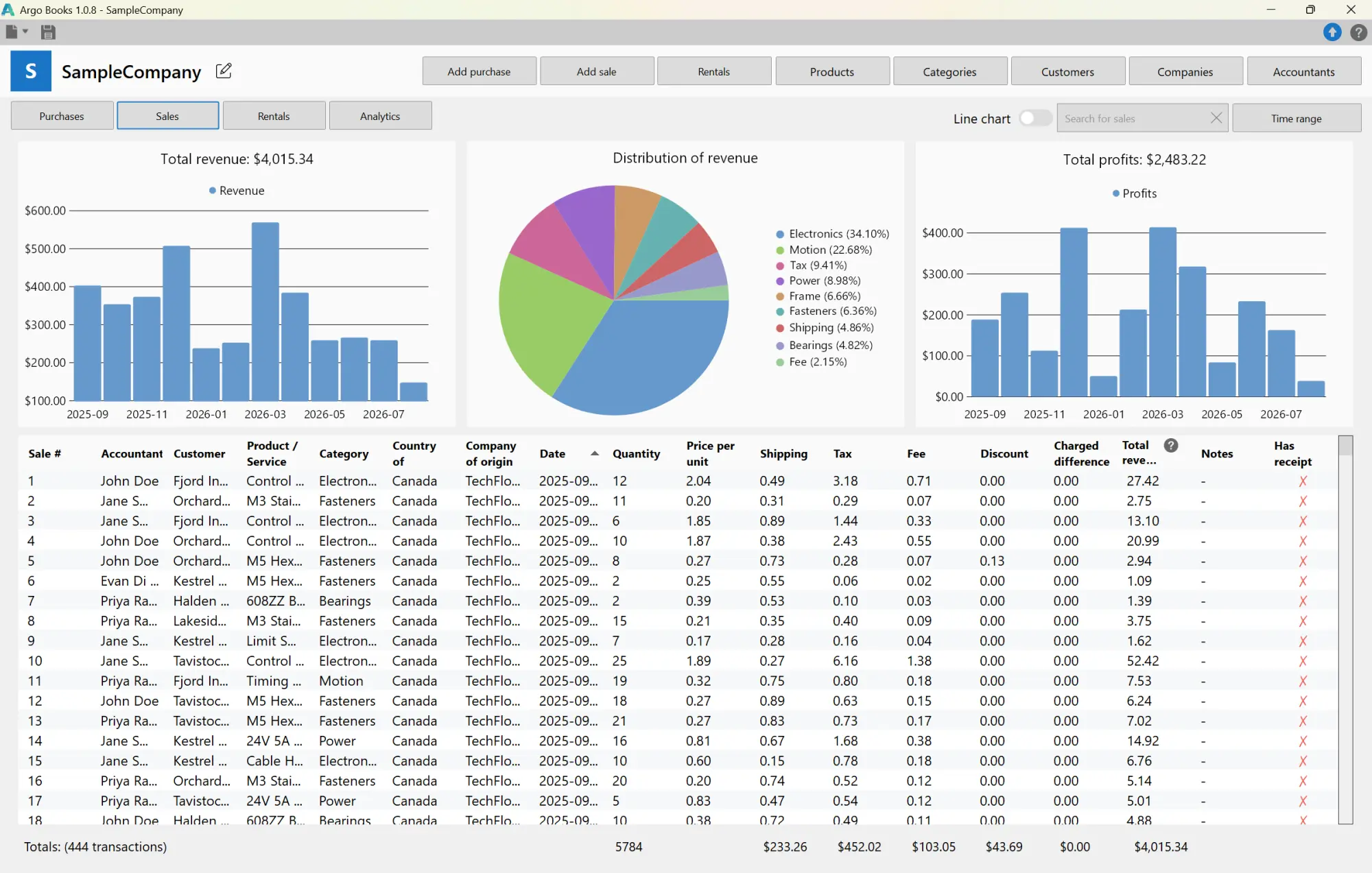
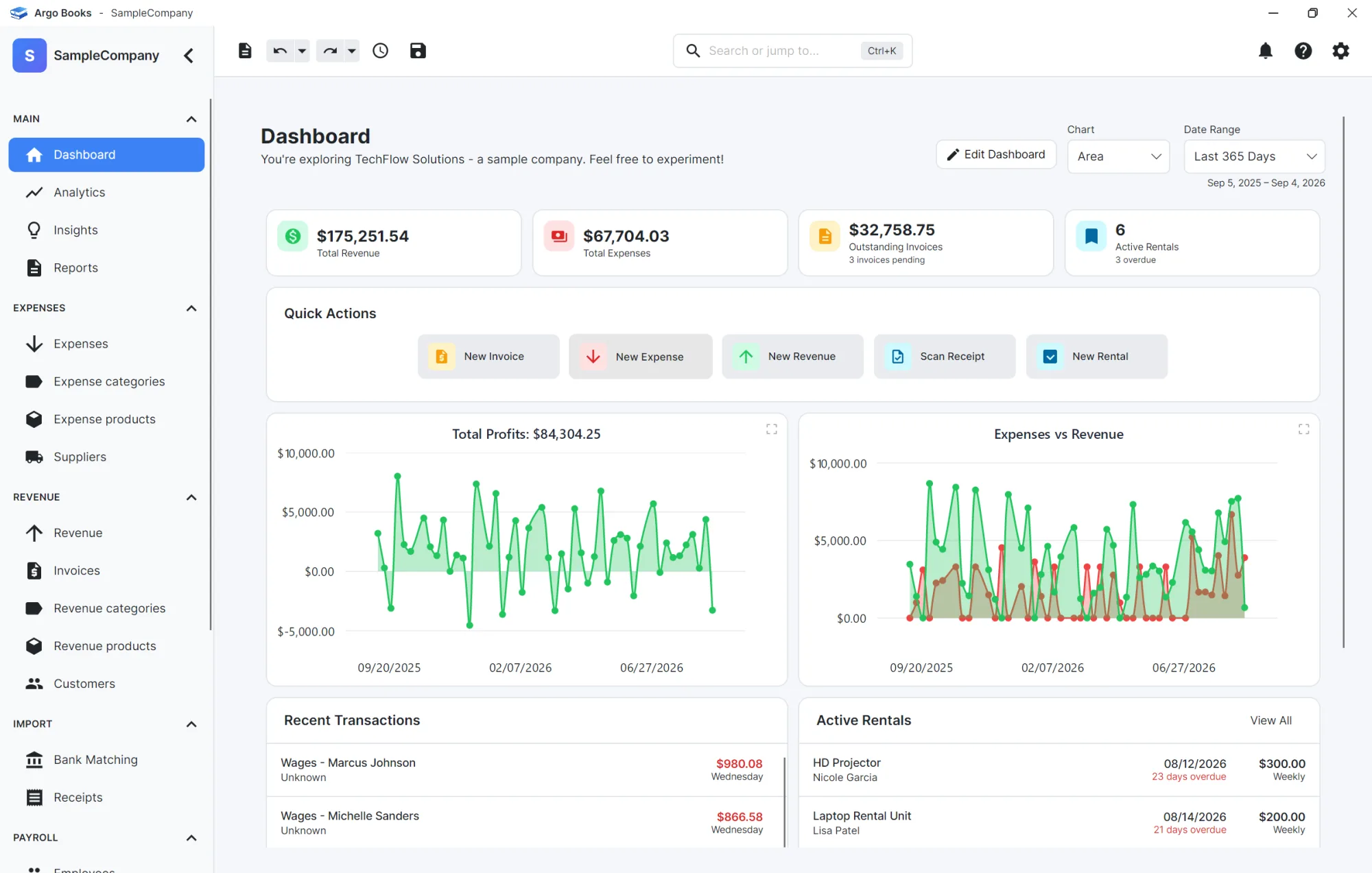
- It’s a better application to use. Modern controls, consistent spacing, real theming, and an interface that was designed rather than assembled from whatever the toolkit shipped in 2002.
- Layouts respond properly. Panels and grids resize the way you would expect instead of being pinned by anchors and arithmetic.
- It performs better, both in general responsiveness and on the screens carrying the most at once: the dashboard charts, the analytics page, and expense and revenue lists running to thousands of rows.
- The calculations are covered by tests. In accounting software that’s not a nicety. It’s the difference between changing a tax rule with confidence and changing it and hoping.
- It’s far easier to maintain. One definition of every screen, logic separated from the windows that display it, and no vendor control suite in the middle.
Version 1 was badly architected, and I won’t pretend otherwise. Money maths sat inside window classes. The interface was half designer and half code. Strings were welded to the screens that displayed them. That was my doing, not the framework’s.
But the framework made every one of those the easy choice and the alternative expensive. WinForms assumes your logic lives in your window, so separating it means working against the grain the whole way. Avalonia’s defaults, the ones you land on by following the obvious path, are separation, declarative layout and a core with no UI dependency. Part of what those nine months bought was simply catching up to defaults I should have had from the start.
There’s also a plainer commercial argument I should say out loud, because it’s the one that pays for the nine months. Every Mac and Linux user was somebody I had nothing to sell. Not a harder sale or a worse conversion rate: no product at all. And you never notice them, because they don’t show up in your analytics as lost customers. They just never arrive.
I know that demand was real because people signed up to be told when the Mac build landed, months before there was one. That was a waitlist for software that didn’t exist, on a platform I couldn’t have shipped to under any circumstances a year ago. Every one of those signups was worth exactly nothing to version 1. They have something to download now.
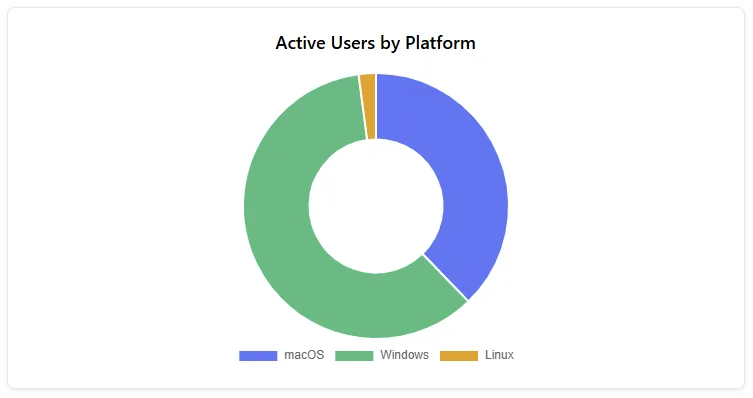
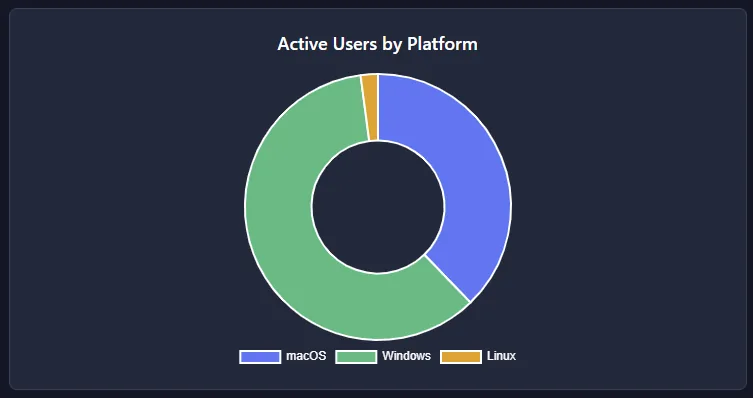
Six weeks after the Mac build shipped, that guess has an answer. Of everyone who has run Argo Books, more than a third are on macOS, with a thin slice on Linux. Not a third of the downloads: a third of the people who actually opened it. That share was built entirely in the six weeks since the Mac build existed, against months of Windows-only history, and over the last thirty days the split is closer to even. Every one of those people was someone version 1 could not have served at any price, and I would never have known they existed.
There are platforms past those three. An Android companion is in development on the same framework: it pairs with the desktop over an encrypted channel, shows the books read-only, and captures receipts with the phone camera. It is an Avalonia Android head that references the same shared project the desktop app does, so the models and the wire format come across without being written twice. iOS is the same shape of job, another head on the same shared project, and it is next. That is not a road that starts anywhere near WinForms.
One cost nobody warns you about: shipping on three platforms means being trusted on three platforms, and that's a separate job from writing the code. The Windows installer is signed through Azure Trusted Signing, or SmartScreen warns every person who downloads it. The Mac build is signed with a Developer ID, notarized, and stapled, and every bundled native library has to be signed individually, because codesign --deep quietly misses them. Notarization also requires the hardened runtime, which blocks the JIT and unsigned executable memory by default, so the entitlements file is load-bearing: drop one entry and the app dies at launch with no useful message. Skip any of this and macOS tells your customer the app is damaged. For accounting software, where the whole proposition is that people trust you with their books.
Reaching more operating systems is the benefit I can point at on a download page, and the one that shows up in revenue. The rest of that list is the reason I’d have done it anyway.
Frequently asked questions
Not the UI. WinForms layout lives in generated designer files and Avalonia layout is XAML, so every screen is rebuilt. Business logic ported far more easily, and the useful move is to lift it out of your window classes into a separate project with no UI dependency, which is worth doing whether or not you migrate.
Argo Books is an accounting product with paying customers, released on Avalonia for Windows, macOS, and Linux, and with encrypted local files, AI receipt scanning, invoicing, payroll and charts across every screen. The framework wasn’t the limiting factor at any point in the nine months, and I never hit something Avalonia couldn’t do and had to design around.
Because WinForms controls are native Windows controls sized in pixels, and that model predates high-resolution screens and fractional display scaling. Microsoft has added several DPI awareness modes over the years, and each fixes some cases while leaving others wrong. The WinForms repository keeps a dedicated triage label for high DPI scaling issues, with 26 still open and the oldest dating from November 2019. Frameworks that draw their own controls, Avalonia included, avoid it because scaling becomes a transform on the whole scene rather than arithmetic repeated per control.
There are previewers and hot reload, but not a drag-and-drop canvas that writes your layout for you. You write XAML by hand. What you get in exchange is that a screen has one definition instead of two, so there is no split between the controls you dragged onto a canvas and the ones a method builds at runtime, and that the markup means the same thing on every machine. A WinForms designer file records the display scaling it was authored on and recalculates every control when someone opens it on a different monitor, which is not a problem markup can have.
I can’t give you a useful number from this project, and I would be suspicious of anyone who quotes one. Version 2 took nine months, but most of that went into features version 1 never had: invoicing, an online payment portal, Canadian payroll, bank statement import, revenue forecasting and much more, none of which existed in the old codebase. Treating nine months as a migration estimate would be wrong by a wide margin. What I can say is that the slow part of the migration itself was untangling business logic from the window classes it lived in, not learning Avalonia. If your logic already sits behind view models or in a separate project, you are most of the way there and the UI rebuild is the easy half.
WinForms has no theming system at all, so dark mode means assigning every color by hand and polling the operating system to detect a theme change. Avalonia has theme variants built in, so colors live in resource dictionaries the framework swaps, and a system theme change arrives as an event. In this codebase that was 1,873 manual color assignments replaced by none.
Yes, but only where the operating systems genuinely differ. In this codebase that’s one interface with 23 members and three implementations, covering things like secure credential storage and biometric unlock. The interface itself, all the layout, and all the business logic are shared across every platform.
Argo Books is free to download and use. No credit card, no trial period. The Free plan covers the core bookkeeping, with 25 invoices, 10 AI receipt scans and 100 spreadsheet imports a month. Premium is $15 a month and lifts those limits, then adds Canadian payroll, revenue forecasting and biometric sign-in. Your data stays on your computer either way.